From Figma to DESIGN.md
Convert Figma variables and design tokens into a DESIGN.md file your AI agent can read. A step-by-step guide to tokens-as-code for on-brand output.
You have a polished Figma file. Color styles, a type scale, spacing variables, component states — all defined, all consistent. Then you open Claude Code, ask it to build a settings page, and it returns generic Tailwind blue with arbitrary padding and a font you've never used. The design system never made the trip from the design tool to the agent.
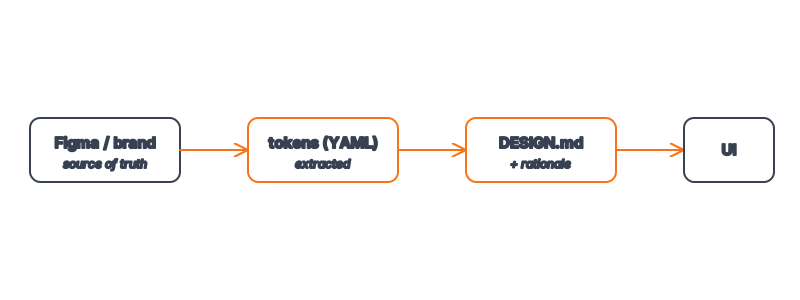
The fix is not a plugin or a sync pipeline. It is a plain-text file. A DESIGN.md is a YAML token block plus a short markdown rationale that an agent reads the same way it reads your code. This tutorial walks through exporting your Figma variables and restructuring them into a DESIGN.md that produces on-brand UI on the first pass. If you are new to the format, start with what a DESIGN.md file is, then come back here for the conversion.
Key Takeaways
- A DESIGN.md is the missing translation layer between Figma and your agent — design tools speak
.fig, agents speak text, and design tokens bridge the two. - Export variables, not screenshots. Figma Variables and Styles are already structured data; you are restructuring them, not redrawing them.
- Semantic names beat raw hex.
primaryandmutedsurvive a rebrand;blue-600does not. - The markdown rationale is half the value — it tells the agent when to reach for each token, which raw hex never can.
- One file makes every future component on-brand, so the 20 minutes you spend converting pays back on the first build. Browse 135+ ready-made systems if you'd rather start from one.
Why Figma Can't Talk to Your Agent Directly
Figma stores your design system in a proprietary, visual format. Your AI agent operates on text — files, prompts, and code. There is no shared vocabulary between a .fig canvas and a coding agent's context window.
People try to close this gap by pasting screenshots into the prompt. It rarely works. The agent guesses hex values off a compressed image, invents spacing, and approximates fonts. What you want instead is a lossless, text-native handoff: the exact values, named the way your team names them. That is precisely what a token file provides, and why the Stitch-style design system format has become the practical standard for agent-readable design.
Step 1: Export Your Figma Variables
Modern Figma stores reusable values as Variables (colors, numbers, strings) grouped into collections, plus Styles for typography and effects. Both are already structured — your job is to get them out.
- Open your file and go to the Local variables panel (the variables icon in the right sidebar).
- Review your collections. A typical setup has a
Primitivescollection (raw values likeblue-600: #2563eb) and aSemanticcollection that aliases them (primary → blue-600). - Export. Use Figma's built-in export variables to JSON (or any token-export plugin that follows the W3C Design Tokens format). The result is a JSON tree of names and values.
- For typography, open each text style and note the font family, size, weight, line-height, and letter-spacing. These often live as styles rather than variables, so capture them by hand if your export skips them.
You now have raw structured data. It is verbose and nested for design tooling — next you compress it into something an agent reads at a glance.
Step 2: Map Figma Names to Semantic Tokens
This is the step most people rush, and it is the one that matters most. Figma primitives like blue-600 describe what a value is. Semantic tokens describe what a value is for. Agents reason far better with intent.
| Figma variable | Raw value | DESIGN.md semantic token |
|---|---|---|
blue-600 | #2563eb | colors.primary |
blue-700 | #1d4ed8 | colors.primary-hover |
gray-950 | #0f1111 | colors.foreground |
white | #ffffff | colors.background |
gray-500 | #6b7280 | colors.muted |
radius-md | 8px | rounded.button |
radius-sm | 4px | rounded.card |
The rule: if two raw values do the same job, give them one semantic name. The agent should never have to decide between blue-600 and blue-500 for a primary button — there is one primary, and it resolves to a single hex. This is also the discipline behind a good accessible palette.
Step 3: Write the DESIGN.md
Now assemble the YAML token block. Keep it flat and readable — this is a contract, not a config schema.
colors:
  primary: "#2563eb"
  primary-hover: "#1d4ed8"
  secondary: "#6366f1"
  accent: "#f59e0b"
  background: "#ffffff"
  foreground: "#0f1111"
  muted: "#6b7280"
  border: "#e5e7eb"
typography:
  fontFamily: "Inter, system-ui, sans-serif"
  baseSize: "14px"
  weights:
    regular: 400
    medium: 500
    bold: 700
  lineHeight: "1.5"
  letterSpacing: "-0.01em"
rounded:
  button: "8px"
  card: "4px"
  input: "6px"
spacing:
  xs: "4px"
  sm: "8px"
  md: "16px"
  lg: "24px"
  xl: "32px"
Then add the rationale below the tokens — three or four short paragraphs that an agent (or a teammate) reads to understand intent:
## Rationale

Primary blue is reserved for the single most important action on any
screen. Use `accent` (amber) sparingly for highlights and badges, never
for primary actions. Body text uses `foreground` on `background`;
secondary text uses `muted`.

Cards use a tight 4px radius for a precise, technical feel; interactive
controls (buttons, inputs) use softer radii. Default spacing between
unrelated blocks is `lg` (24px); within a component, use `sm` or `md`.
That rationale is what lifts a token file above a stylesheet. It encodes the judgment that lives in a designer's head — and it is exactly the kind of guidance covered in the DESIGN.md vs traditional style guide comparison.
Step 4: Verify the Round-Trip
Don't trust the conversion until you've watched an agent use it. Save DESIGN.md at the repo root and run a focused build:
# In Claude Code, point the agent at the file and ask for one component
"Build a pricing card component using only the tokens in DESIGN.md.
Use colors.primary for the CTA, colors.muted for secondary text,
and rounded.card for the container. Do not introduce new colors."
Open the result. The CTA should be your exact #2563eb, the radius your exact 4px, the font Inter. If the agent introduced a stray color, your rationale needs a tighter constraint ("never introduce colors outside the palette"). If spacing drifted, your spacing scale may be missing a value the agent wanted. Tighten and re-run. Two passes is normal; the file is reusable forever after. For more on this hand-off, see how agents build on-brand UIs.
Frequently Asked Questions
Do I need a Figma plugin to export tokens?
No. Figma's native export variables to JSON covers colors, numbers, and strings. A plugin helps if you want the W3C Design Tokens format or if your typography lives in text styles the native export skips. For hand-built systems you can write DESIGN.md directly with no Figma file at all.
How is this different from exporting design tokens to JSON?
JSON token files are machine-to-machine — built for style pipelines that compile to CSS variables. A DESIGN.md is human- and agent-readable: a flat token block plus prose rationale. The prose is the difference. JSON tells an agent the value of primary; markdown tells it when to use primary.
What if my Figma file has hundreds of variables?
Collapse them. Agents work best with 8–12 semantic colors, one type scale, three or four radii, and a five-step spacing scale. If your Figma file has 40 grays, pick the three you actually use (foreground, muted, border) and drop the rest. Less is more in an agent's context window.
Should DESIGN.md live in the repo or in the design tool?
In the repo, next to the code the agent edits. Designers can keep Figma as the source of truth and re-run the export when the system changes, but the agent only ever reads the committed DESIGN.md. Treat it like any other versioned config.
Can one DESIGN.md cover light and dark themes?
Yes — add a parallel colors.dark block (or a themes map) and note in the rationale which semantic tokens swap. Keep the semantic names identical across themes so components reference foreground, not gray-950, and the theme switch is purely a value change.
Browse 135+ agent-ready design systems in the Designs category, or explore the full skill catalog at aiskill.market.